 ### Fluid grids
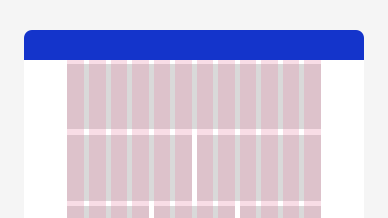
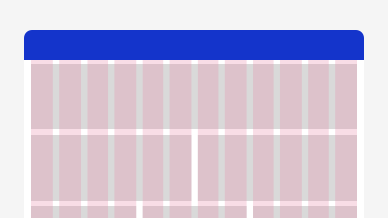
Fluid grids scale with screen width, using all the available space. Columns expand as the screen grows, while gutters and margins remain fixed. They’re ideal for dashboards or data-heavy designs.
### Fluid grids
Fluid grids scale with screen width, using all the available space. Columns expand as the screen grows, while gutters and margins remain fixed. They’re ideal for dashboards or data-heavy designs.
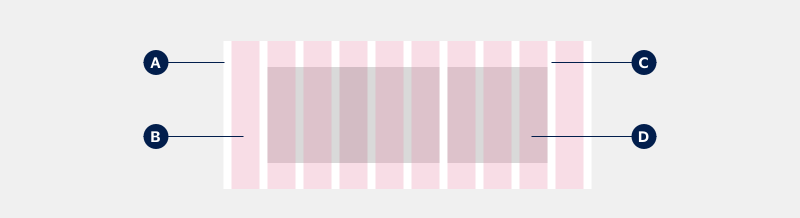 **A. Margin:** The empty space on the two outer edges of the grid.
### Fluid grids
Fluid grids scale with screen width, using all the available space. Columns expand as the screen grows, while gutters and margins remain fixed. They’re ideal for dashboards or data-heavy designs.
**A. Margin:** The empty space on the two outer edges of the grid.
### Fluid grids
Fluid grids scale with screen width, using all the available space. Columns expand as the screen grows, while gutters and margins remain fixed. They’re ideal for dashboards or data-heavy designs.
 ### Horizontal and advanced layouts
The grid designed for horizontal and advanced layouts is simple and flexible. Its variants are fluid by design with one option for a fixed grid at larger screen sizes.
### Horizontal and advanced layouts
The grid designed for horizontal and advanced layouts is simple and flexible. Its variants are fluid by design with one option for a fixed grid at larger screen sizes.
 Breakpoints for horizontal navs, which lists the number of columns, margins, and gutters
- Breakpoint: 4
- Number of columns: 16px
- Margins: 16px
- Breakpoint: 8
- Number of columns: 16px
- Margins: 24px
- Breakpoint: 12
- Number of columns: 24px
- Margins: 24px
- Breakpoint: 12
- Number of columns: 80px min
- Margins: 24px
### Vertical and mixed layouts
The grid designed for vertical and mixed layouts adapts to accommodate the left navigation panel. The grid begins to the right of the left navigation, with the space between the navigation panel and the first column serving as the left margin. While the grid system is fixed in Figma, it can also be built as fluid.
Breakpoints for horizontal navs, which lists the number of columns, margins, and gutters
- Breakpoint: 4
- Number of columns: 16px
- Margins: 16px
- Breakpoint: 8
- Number of columns: 16px
- Margins: 24px
- Breakpoint: 12
- Number of columns: 24px
- Margins: 24px
- Breakpoint: 12
- Number of columns: 80px min
- Margins: 24px
### Vertical and mixed layouts
The grid designed for vertical and mixed layouts adapts to accommodate the left navigation panel. The grid begins to the right of the left navigation, with the space between the navigation panel and the first column serving as the left margin. While the grid system is fixed in Figma, it can also be built as fluid.
 Breakpoints for vertical and mixed layouts, which lists the number of columns, margins, and gutters
- Breakpoint: 12
- # columns: 24px
- Margins: 24px
- Breakpoint: 12
- # columns: 24px
- Margins: 24px
- Breakpoint: 12
- # columns: 32px
- Margins: 24px
- Breakpoint: 12
- # columns: 32px
- Margins: 24px
- Breakpoint: 12
- # columns: 32px
- Margins: 24px
- Breakpoint: 12
- # columns: 32px
- Margins: 24px
- Breakpoint: 12
- # columns: 32px
- Margins: 24px
- Breakpoint: 12
- # columns: 32px
- Margins: 24px
## System baseline
A baseline grid ensures consistency within content areas across platforms. It guides the design of foundational elements like typography and iconography, as well as main components.
### Factors of four
The VPDS grid system is based on factors of four as the base unit. For example, for vertical spacing, it is suggested to use spacing blocks of 16px, 24px, 32px, 48px, etc.
Breakpoints for vertical and mixed layouts, which lists the number of columns, margins, and gutters
- Breakpoint: 12
- # columns: 24px
- Margins: 24px
- Breakpoint: 12
- # columns: 24px
- Margins: 24px
- Breakpoint: 12
- # columns: 32px
- Margins: 24px
- Breakpoint: 12
- # columns: 32px
- Margins: 24px
- Breakpoint: 12
- # columns: 32px
- Margins: 24px
- Breakpoint: 12
- # columns: 32px
- Margins: 24px
- Breakpoint: 12
- # columns: 32px
- Margins: 24px
- Breakpoint: 12
- # columns: 32px
- Margins: 24px
## System baseline
A baseline grid ensures consistency within content areas across platforms. It guides the design of foundational elements like typography and iconography, as well as main components.
### Factors of four
The VPDS grid system is based on factors of four as the base unit. For example, for vertical spacing, it is suggested to use spacing blocks of 16px, 24px, 32px, 48px, etc.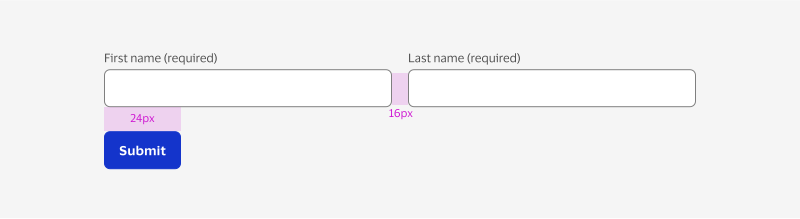 ## Content reflow
As screen width changes, consider how your content areas will shift or reflow. It's crucial to communicate this reflow to the development team, ensuring they understand how the design should adapt at each breakpoint. Reflow can be defined in terms of percentages or column spanning. For instance, if a content area occupies 50% (6 columns) at 1600px, it might occupy 25% (4 columns) at 1280px. Define your reflow patterns based on the components within your content areas.
## Screen size
The VPDS grid system is designed to scale across multiple platforms, from mobile to ultra-wide screens. Each view is designed for seamless content scaling. Note the grid dimension changes from mobile to desktop: Margins increase from 16px to 24px, and the number of columns changes with screen width. Mobile components fit easily into the predefined mobile grid.
### Example layouts
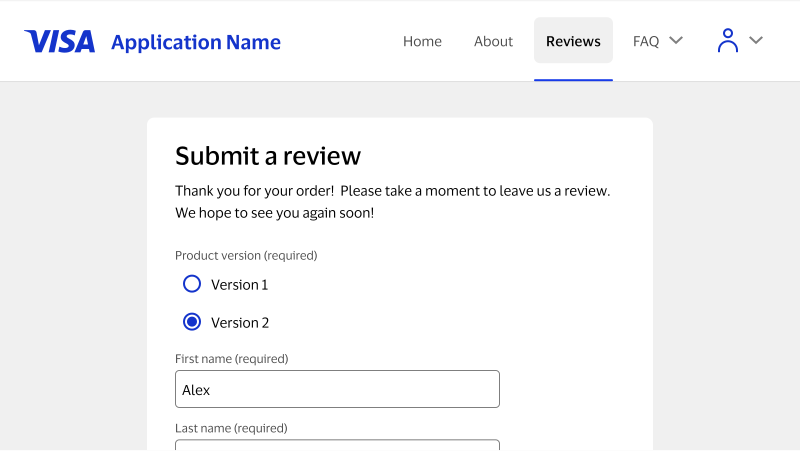
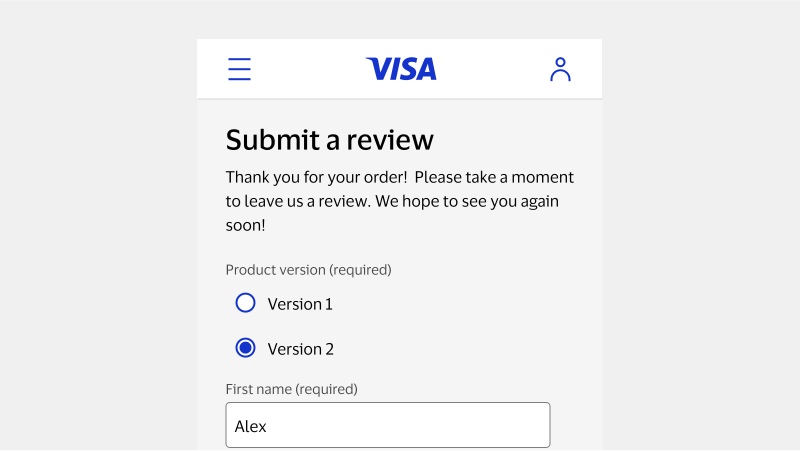
The following is an example of a form designed in both web and mobile.
### Web
## Content reflow
As screen width changes, consider how your content areas will shift or reflow. It's crucial to communicate this reflow to the development team, ensuring they understand how the design should adapt at each breakpoint. Reflow can be defined in terms of percentages or column spanning. For instance, if a content area occupies 50% (6 columns) at 1600px, it might occupy 25% (4 columns) at 1280px. Define your reflow patterns based on the components within your content areas.
## Screen size
The VPDS grid system is designed to scale across multiple platforms, from mobile to ultra-wide screens. Each view is designed for seamless content scaling. Note the grid dimension changes from mobile to desktop: Margins increase from 16px to 24px, and the number of columns changes with screen width. Mobile components fit easily into the predefined mobile grid.
### Example layouts
The following is an example of a form designed in both web and mobile.
### Web
 ### Mobile
 ## Component size
### Web scale
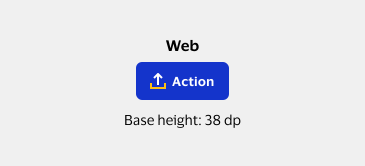
Web components have a base height of 38 dp. The default component size is determined across the system by the base height.
{/* no alt because the image doesn't give info not in paragraph */}
## Component size
### Web scale
Web components have a base height of 38 dp. The default component size is determined across the system by the base height.
{/* no alt because the image doesn't give info not in paragraph */}
 ### Mobile scale
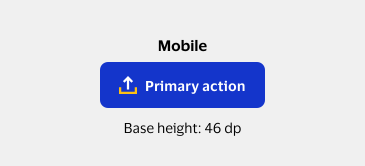
The mobile scale is 1.25 times larger than web, with a base height of 46 dp. It’s applied for native mobile and responsive web views when a touch device is detected.
{/* no alt because the image doesn't give info not in paragraph */}
### Mobile scale
The mobile scale is 1.25 times larger than web, with a base height of 46 dp. It’s applied for native mobile and responsive web views when a touch device is detected.
{/* no alt because the image doesn't give info not in paragraph */}
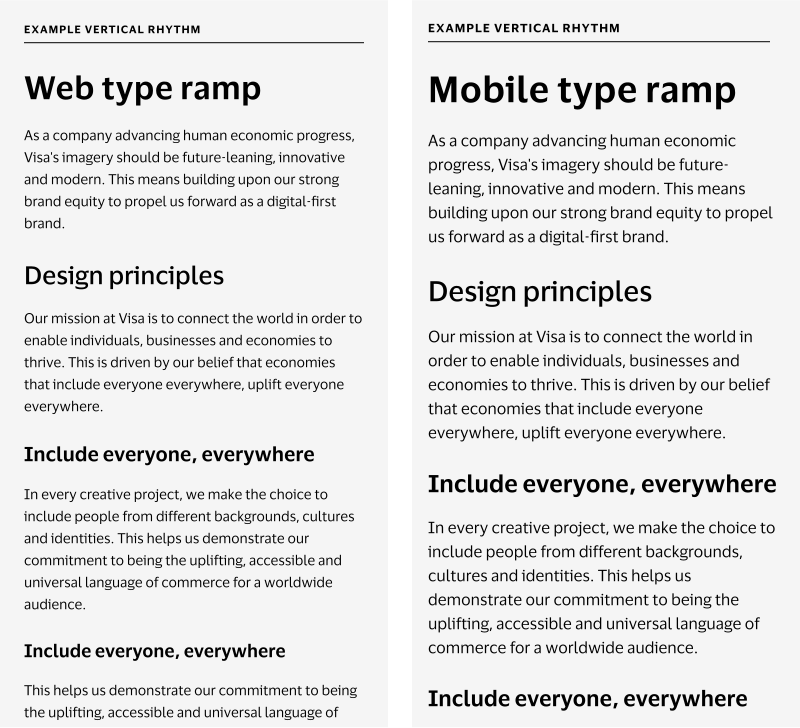
 ## Typography size
Typography also scales up for mobile platforms. Body 2 is the base body copy size for the design system. Body 2 is defined as 14 px for web platforms and 16 px for mobile platforms. Get more detailed specifications in [Typography.](https://design.visa.com/base-elements/typography/usage)
## Typography size
Typography also scales up for mobile platforms. Body 2 is the base body copy size for the design system. Body 2 is defined as 14 px for web platforms and 16 px for mobile platforms. Get more detailed specifications in [Typography.](https://design.visa.com/base-elements/typography/usage)
 ## Units
Not all screens and platforms have the same pixel density, which is the number of pixels in a given area. This results in elements appearing larger on screens with lower pixel density and smaller on screens with higher density.
## Units
Not all screens and platforms have the same pixel density, which is the number of pixels in a given area. This results in elements appearing larger on screens with lower pixel density and smaller on screens with higher density.